Remove objects and people from photos
The slow part of removing someone from a photo is not the removal. It is the selection.
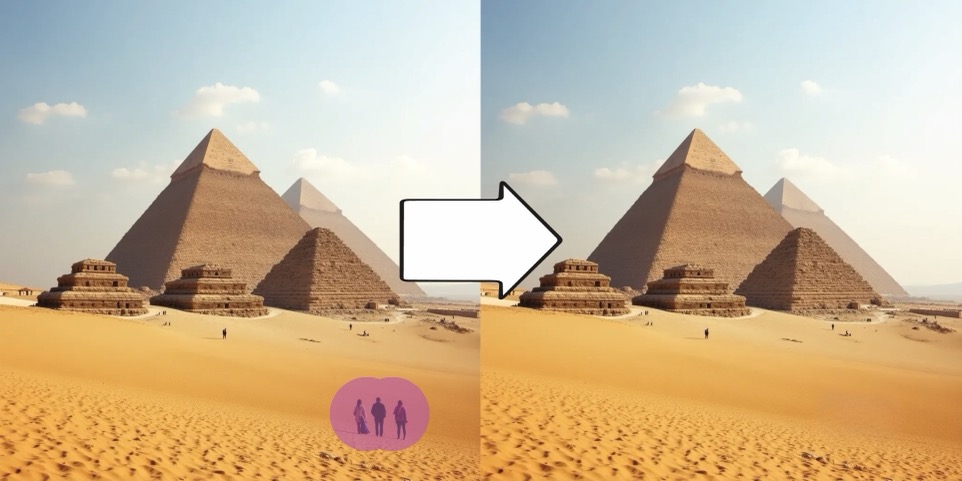
snapfiddle skips it. Brush over the stranger standing in the background of your holiday photo, spill onto the wall behind them, ignore the edges. The marked area fills back in with content that matches its surroundings, and the result appears in place on the canvas.
Marking loosely is not a compromise. A stroke that covers a little more than the object usually beats one traced tight against its edge, because the fill has more surrounding context to work from.
How it works
- 1Drag a photo onto the canvas, or paste one straight from your clipboard.
- 2Select the image. Its toolbar appears above it.
- 3Pick the eraser and brush over what you want gone. Rough covering is fine.
- 4The marked region fills in with background. Undo and re-mark if it comes out wrong.
What people use it for
- Taking bystanders and tourists out of travel photos
- Cleaning cables, stands and price tags from product shots
- Removing burned-in timestamps and camera overlays from your own photos
- Clearing clutter from interior and real-estate photos before publishing
- Deleting an ex, a parked car, or a stray hand from a family picture
Where it struggles
- Big removals leave artifacts at the edge of the filled region. That is what the repair tool is for, and reaching for it after a large erase is the normal second step rather than a sign something went wrong.
- Background structure decides the result more than object size does. A bin standing on grass disappears cleanly. The same bin against tiled flooring, brickwork or printed text is much harder, because the fill has to continue a pattern instead of inventing plausible texture.
- If a fill looks smeared, mark a wider area and run it again. Tight selections starve it of the context it needs.
Common questions
- Do I need to install anything?
- No. snapfiddle runs in the browser. You drop an image onto the canvas and edit it there.
- Do I have to select the object precisely?
- No, and precision can make things worse. A rough stroke that covers slightly more than the object gives the fill more surrounding context to match against.
- Can I undo a removal I do not like?
- Yes. Every edit goes onto an undo stack, so you can step back and mark the region differently as often as you want.
- What do I do about smudges left after removing something large?
- Mark them with the repair tool and fill them again. It is built for small leftover patches and is the usual follow-up to a big removal.