Repair patches, seams and artifacts in a photo
This is the least interesting tool on the site and the one that gets used most.
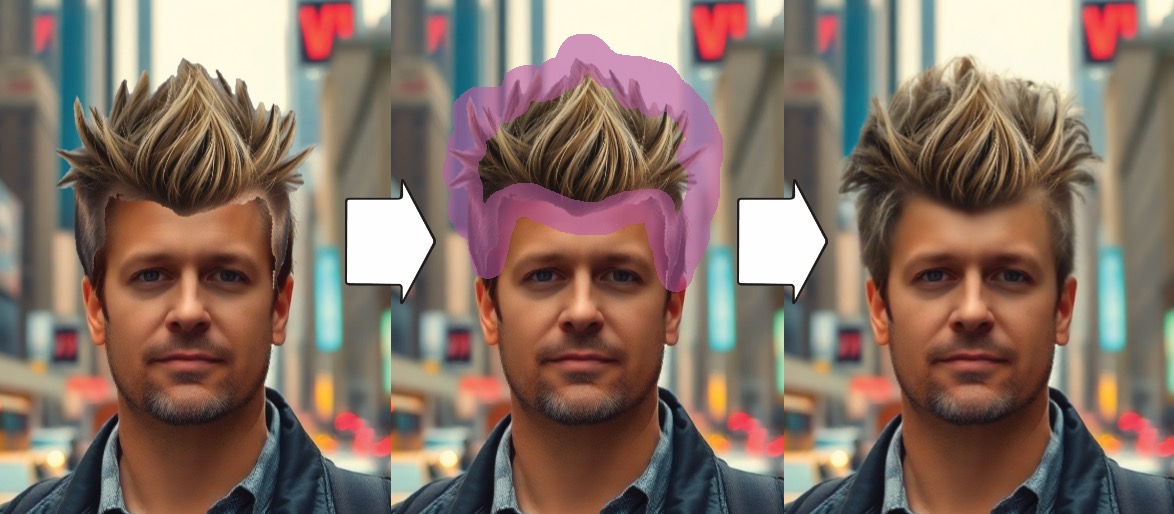
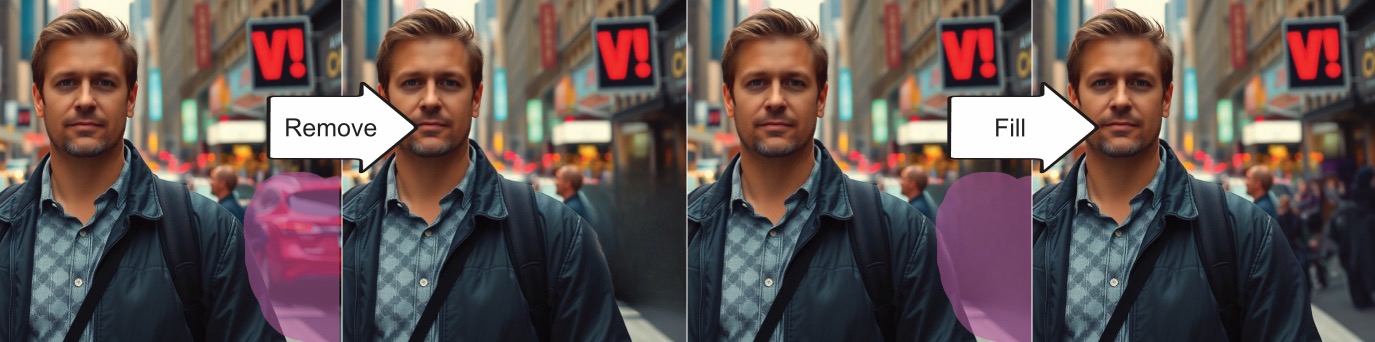
Repair fills a small marked area with content matching what surrounds it. Two jobs come up constantly. Clearing the artifacts left behind after erasing something large, and smoothing the seam where two photos have been merged on the canvas.
Neither is glamorous. Both are the difference between an edit that survives a second look and one that does not.
How it works
- 1Select the image that needs cleaning up.
- 2Pick the repair tool from the image toolbar.
- 3Mark the patch, seam or artifact.
- 4It fills with content matching its surroundings. Repeat on anything that still looks wrong.
What people use it for
- Clearing artifacts left behind after erasing a large object
- Blending the seam where two photos were combined
- Patching scratches and dust in scans of old photos
- Tidying the border of a cut-out subject after background removal
- Removing small blemishes without touching the rest of the image
Where it struggles
- Four small marks beat one large one. The fill is inferred from the pixels bordering your selection, so a small patch has proportionally more context to draw on than a big one covering the same total area.
- If you find yourself marking something large, you want object removal instead. Repair is built for areas that are already nearly right.
- A patch surrounded by even texture like sky, skin or wall reconstructs almost invisibly. The same patch surrounded by strong structure does not, for the same reason it is hard in the removal tool.
Common questions
- When should I use repair instead of object removal?
- Use removal to take something out. Use repair afterwards on the leftover patches and rough edges. It is a clean-up tool for areas that are already close.
- Can it fix scratches on a scanned photo?
- Yes. Marking scratches, dust and small damaged spots and filling them from the surrounding image is one of the things it handles well.
- Why does one big mark work worse than several small ones?
- The fill is inferred from the pixels bordering the marked area. Smaller marks have proportionally more surrounding context, so they reconstruct more accurately.